Patient Linking
Management Portal users are able to manually link and unlink a patient's transactional record to a regulatory patient profile.
Link a transactional record to a regulatory patient profile
You can link a transactional record to an existing regulatory patient profile.
-
Search for a patient with a regulatory patient profile that is not already linked to a transactional record.
Regulatory patient profiles that are not linked to a transactional record display in the Record Type field.
-
Click the record to open it, then click Linking at the top.
The Linking popup displays.
-
Click Link.
-
Search for the patient that you want to link to the regulatory patient profile.
Only unlinked transactional records are returned in the search results.
-
Click to select the patient that you want to link and then click the Link button.

The regulatory patient profile displays with the success message:
If you want to view the patient's transactional record, click Medications.
If you want to view the patient's linking history, click Linking. See also View linking history
Unlink a transactional record from a regulatory patient profile
You can unlink a transactional record that was linked either manually or automatically to a regulatory patient profile.
-
Search for a patient with a regulatory patient profile that is linked to a transactional record.
Regulatory patient profiles that are linked to a transactional record display in the Record Type field.
-
Click Linking at the top.
The Linking popup displays.
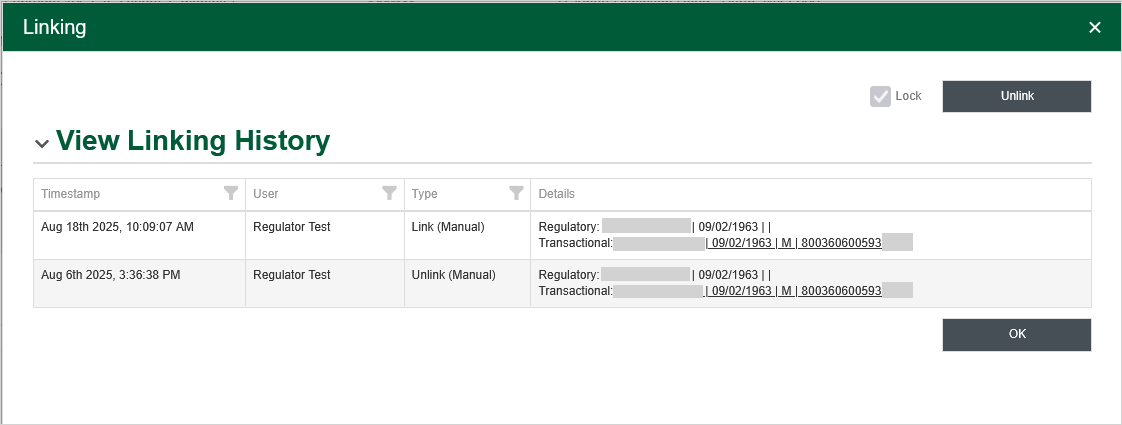
-
Click Unlink.
The regulatory patient profile displays with the success message:
Lock automatically linked profiles
Regulatory profiles and transactional records can also be linked and unlinked through an automatic process—for example, if a name is changed in one of the profiles. If you want to preserve the linkage between an automatically linked regulatory profile and transactional record, you can lock them.
-
Search for a patient with a regulatory patient profile that has been linked to a transactional record.
Regulatory patient profiles that are linked to a transactional record display in the Record Type field.
-
Open the record.
The transactional record displays.
-
Click Patient Profile to display the regulatory patient profile.
If the regulatory patient profile and the transactional record have been linked through an automated process, and they have not been locked, the Linking button at the top displays
-
Click Linking. The Linking popup displays.
Automated linking events are not shown in the linking history.
-
Select the Lock checkbox.
The regulatory patient profile displays with the success message:
View linking history
-
Search for a patient with a regulatory patient profile.
Regulatory patient profiles can be either linked or unlinked, displaying either or in the Record Type field.
-
Open the patient record.
-
If you are viewing a linked patient, the transactional record (medication history) is displayed first. You will need to click Patient Profile to view the regulatory patient profile.
-
Click Linking at the top.
The Linking popup displays.
Under View Linking History, a grid displays showing the history of any manual linking, unlinking or locking events.
Automated linking events are not shown in the linking history.
Each row in the grid displays:
-
Timestamp - Date and time of the linking event.
-
User - User who performed the linking event.
-
Type - One of the following:
-
Link (Manual) - the regulatory profile and transactional record were manually linked.
-
Unlink (Manual) - the regulatory profile and transactional record were manually unlinked.
-
Link (Lock) - the regulatory profile and transactional record that were previously automatically linked have been manually locked to prevent them from being unlinked by an automated linking process.
-
-
Details - Includes the name, date of birth, and gender for the regulatory patient and the transactional patient. The transactional patient contains a hyperlink, which you can click to view the transactional patient profile in a new browser tab.
-
What do the icons on the Linking button mean?
As a Management Portal user with the required permissions, when you view a patient's regulatory profile, you will see a Linking button at the top of the screen. This button may also display icons that provide more information about the link status.
| If you see... | The regulatory profile is... |
|---|---|
| Not linked to a transactional record. | |
| Linked (automatically) to a transactional record. | |
|
Linked (manually) to a transactional record. (This also includes the scenario where the regulatory patient profile was created from a transactional record. --or-- Linked (automatically) to a transactional record, then subsequently locked. |